 Family Photo Maker
Tips & Best Practices
AI Family Photos Generator
Get professional-quality results every time. These tips help you choose the right photos, avoid common mistakes, and make the most of AI portrait generation.
Photo Selection Tips
The quality of your input photos directly affects results
✓ Do This
Use Front-Facing Photos
Photos where the person is looking directly at the camera produce the most accurate likenesses.
Good, Even Lighting
Natural light or well-lit indoor photos. Avoid harsh shadows across the face.
Clear, Sharp Images
Avoid blurry photos. Standard smartphone selfies in good conditions work well.
Face Fully Visible
No sunglasses, hats covering the face, or hair obscuring features.
✗ Avoid This
Avoid Extreme Angles
Side profiles or dramatic angles reduce likeness accuracy.
No Heavy Filters
Instagram filters or heavy editing can confuse the AI.
Skip Group Crops
Don't crop individuals from group photos—the resolution is usually too low.
Avoid Old/Faded Photos
Very old photos with color degradation produce inconsistent results.
Common Mistakes to Avoid
Issues that frequently cause poor results
Mixing Photo Qualities
One crisp photo among several blurry ones creates an unbalanced result. Try to match quality across all inputs.
Wrong Style for Group Size
Some styles work better with 2-4 people, others with larger groups. Check style descriptions for recommendations.
Expecting Exact Outfits
The AI interprets clothing to fit the style. Don't expect exact replicas of what's in input photos.
Using Too Many Low-Quality Pet Photos
Pets need clear photos too. Action shots or blurry pet photos reduce overall quality.
Pre-Generation Checklist
Run through this before clicking generate
All photos are clear and well-lit
No blurry or dark images
Faces are front-facing and visible
No sunglasses or obscured features
Photo qualities are similar
Avoid mixing HD with low-res
Style matches your group size
Some styles suit smaller/larger groups
Everyone is uploaded
Don't forget pets!
You have credits available
Each generation costs 45 credits
Troubleshooting Poor Results
If your portrait didn't turn out as expected, try these fixes
Face Doesn't Look Right
Use a more front-facing photo with better lighting. Avoid photos where the face is at an angle or partially shadowed.
Clothing Looks Wrong
The AI interprets clothing—it won't copy exact outfits. Try a different style if the interpretation doesn't work for you.
People Look Inconsistent
Ensure all input photos have similar quality and lighting. Replace any that are significantly different from the others.
Pet Doesn't Look Right
Use a clear, still photo of your pet facing the camera. Action shots or blurry photos reduce accuracy.
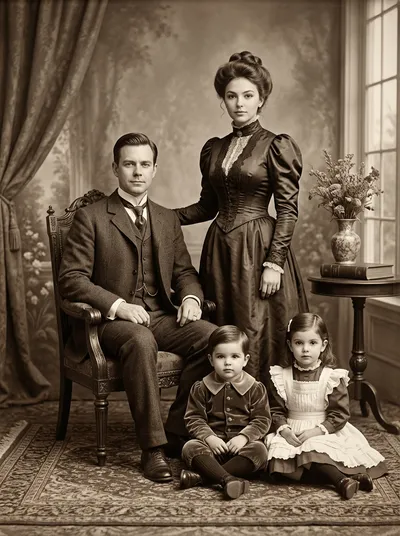
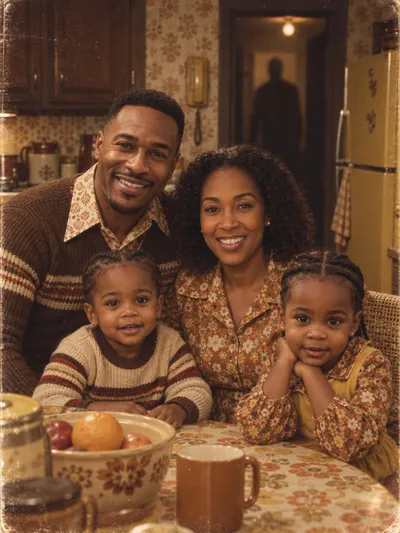
Well-Executed Examples
Portraits that followed these best practices




Tips FAQ
What makes a good input photo for AI generation?▼
Why did my portrait not turn out well?▼
Can I fix a bad result without using more credits?▼
How do I know which style to choose?▼
Should I edit my photos before uploading?▼
Related Resources
Ready to Try?
Apply these tips and create a portrait you'll love. 45 free credits for new accounts.